
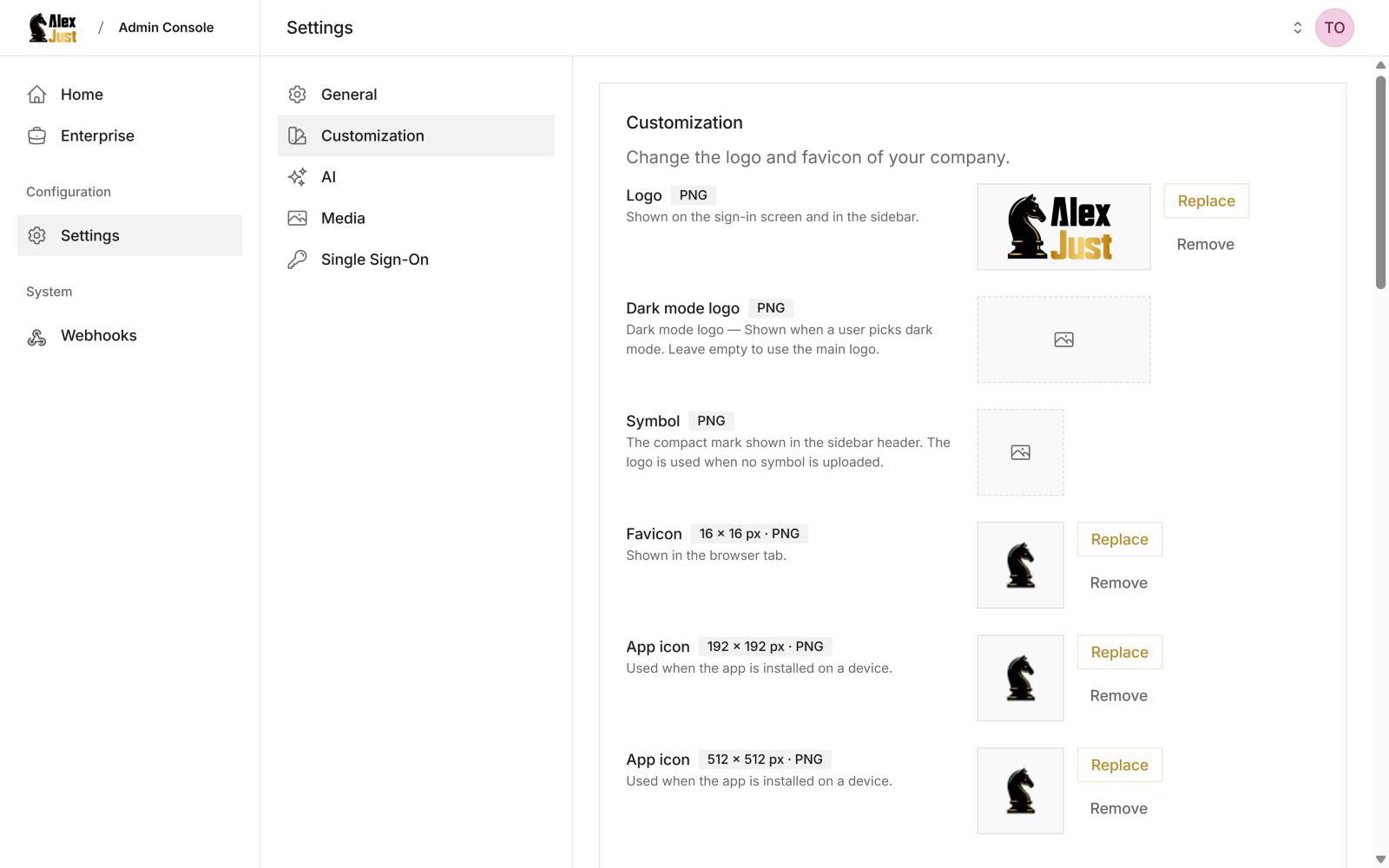
Logo and icons
Click Replace next to each image, choose the file, then click Save.
Theme
Below the images, Themes lists the built-in looks, from Sand and Classic to Midnight and Ocean. Click Use on one to make it what everyone sees, or click New theme to start from a built-in theme and change its colours to match your brand. To let each customer pick a built-in theme for themselves, go to Enterprise Console > Settings > System and set Allow users to choose their own theme to Yes. Customers can choose a theme but never edit one.Other system settings
In Enterprise Console > Settings > System you also choose:Your domain
Your platform runs at your own domain, such asapp.yourdomain.com, set up for you by OnlySocial. To move it to a different domain, contact OnlySocial support before you change any DNS records.