
Users
Enterprise Console > Users lists everyone on your platform with their email address, how many workspaces they belong to, whether they use two-factor authentication, and when they joined.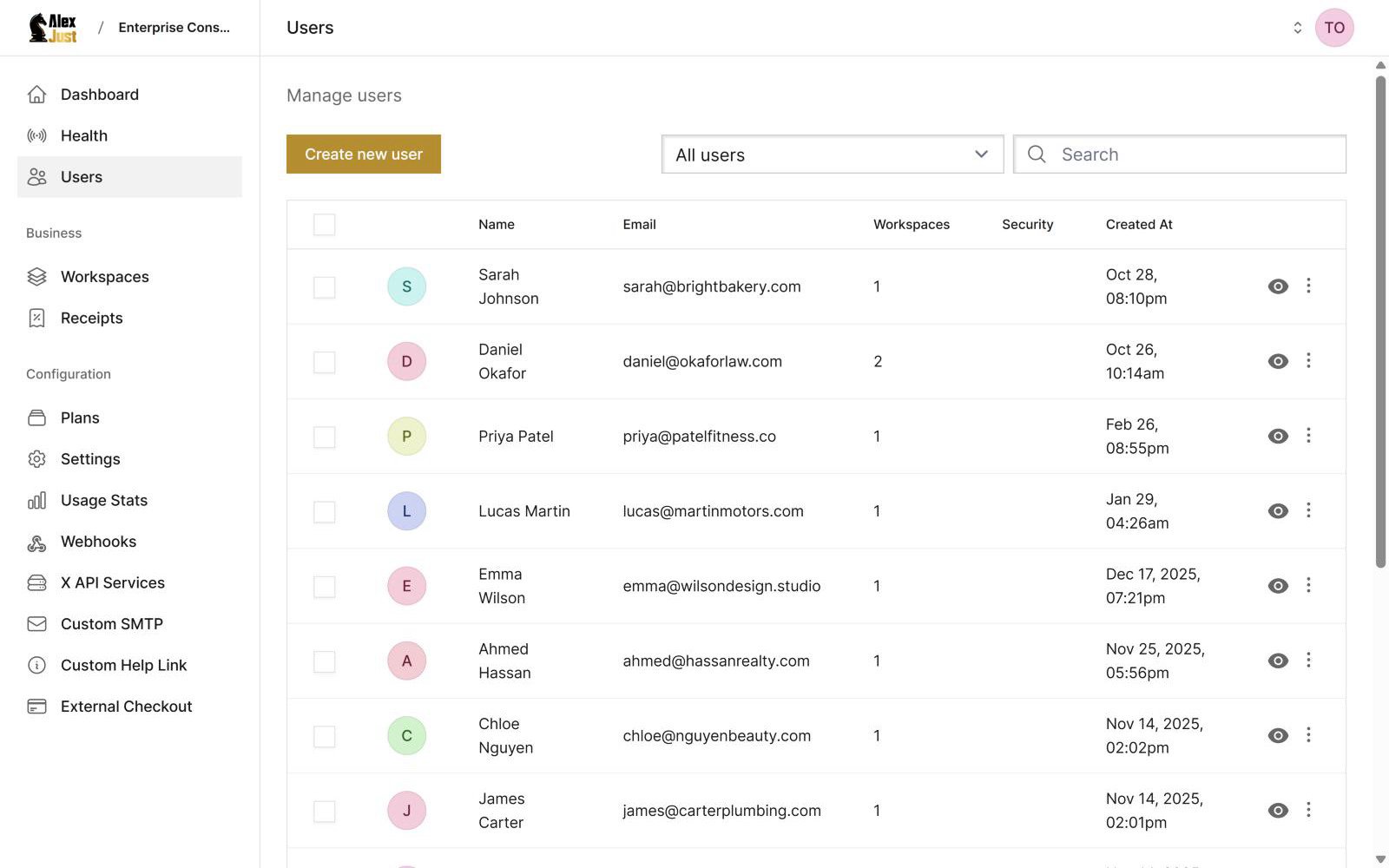
Sign in as a customer
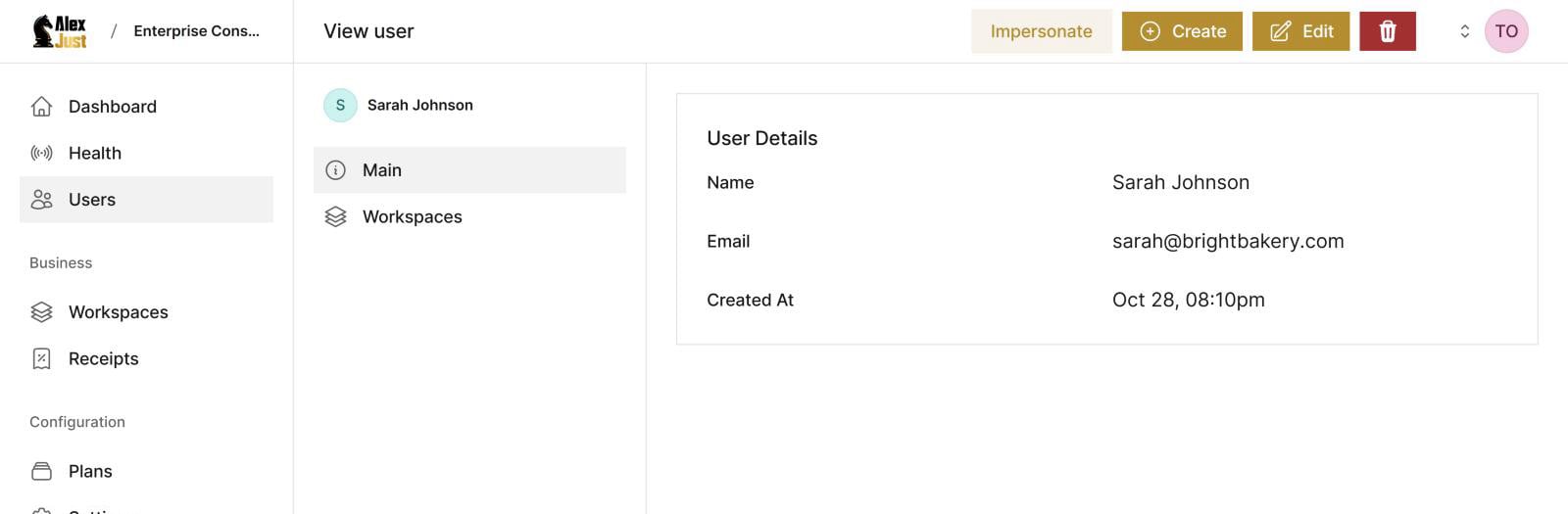
To see exactly what a customer sees, for example to help with a problem, click Impersonate on their page. You are signed in as them, and an Impersonating badge shows under the avatar at the top right. To come back to your own account, open the user menu and click Sign Out. While you are impersonating, that ends the impersonation instead of signing you out.Workspaces
Enterprise Console > Workspaces lists every workspace. Open one to see its tabs: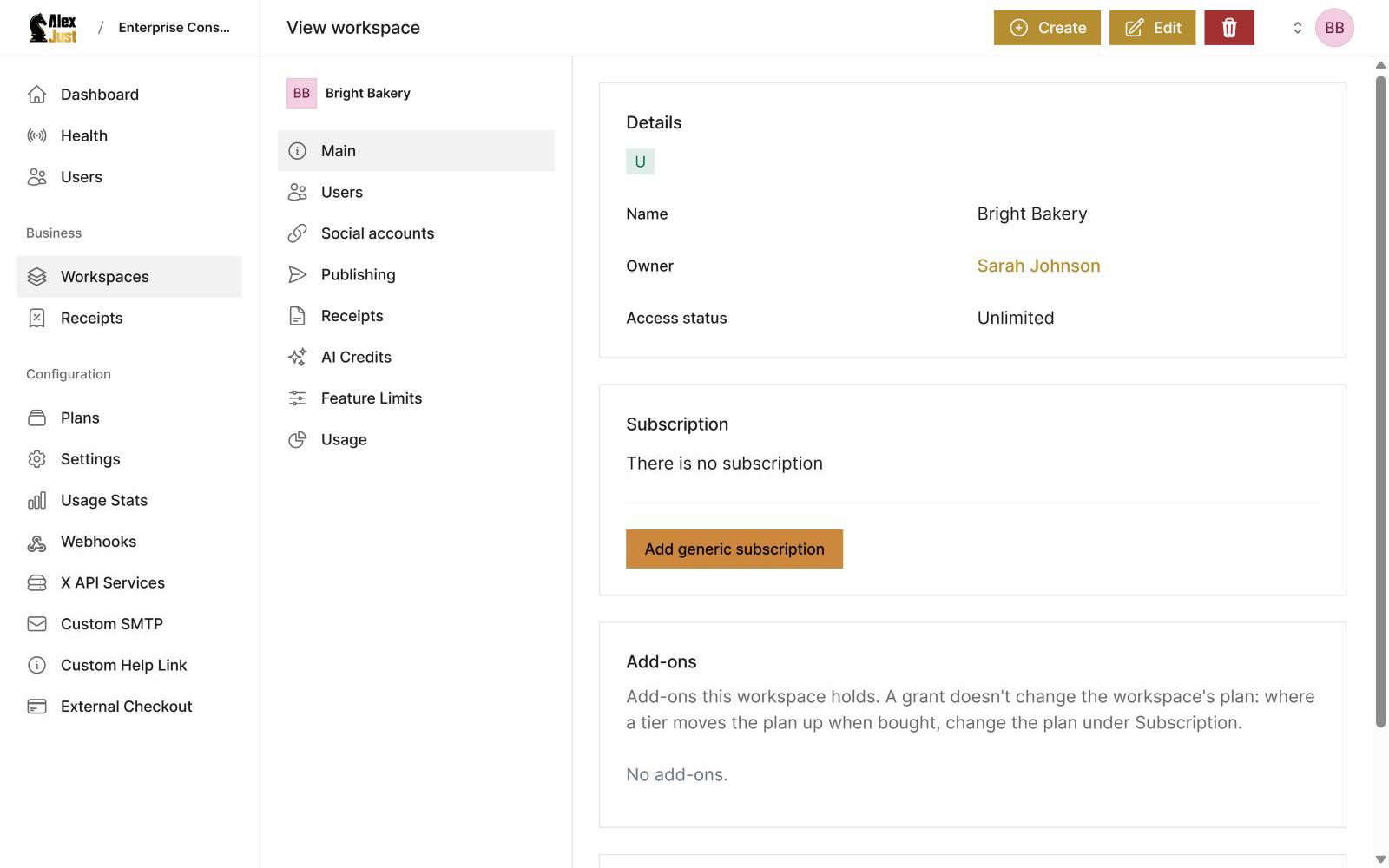
Give a workspace a plan
To put a workspace on a plan without a payment, for example a partner, a friend or a hidden plan for a custom deal:1
Open the workspace
In Enterprise Console > Workspaces, open the workspace.
2
Add a generic subscription
Under Subscription, click Add generic subscription.
3
Choose the plan
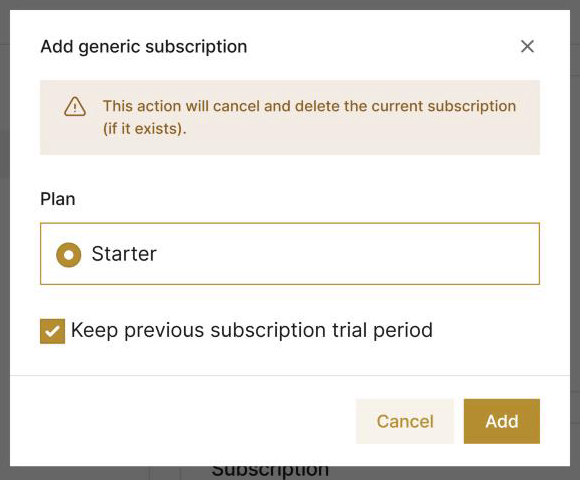
Pick the plan. Leave Keep previous subscription trial period ticked to keep any trial the workspace still has, then click Add.
Keep an eye on the platform
- Dashboard. Revenue (MRR, ARR, the last 30 days), paying customers, trials, past-due and cancelling subscriptions, and customers by plan.
- Health. Publishing failures by network, the most frequent errors, and disconnected social accounts across every workspace. Check it to spot a network having trouble before customers report it.
- Receipts. Every payment on the platform.