
app.yourdomain.com for that address: replace it with yours.
Sign in
1
Open your platform
Go to
https://app.yourdomain.com/os/login.2
Set your password
Your admin account uses the email address OnlySocial sent you. The first time, choose a password at
https://app.yourdomain.com/os/forgot-password: enter that email address and follow the link in the message you receive.3
Sign in
Sign in with your email address and new password. You land in your own workspace, like any customer.
Your admin menus
As the platform admin you have two extra items in the user menu, at the top right: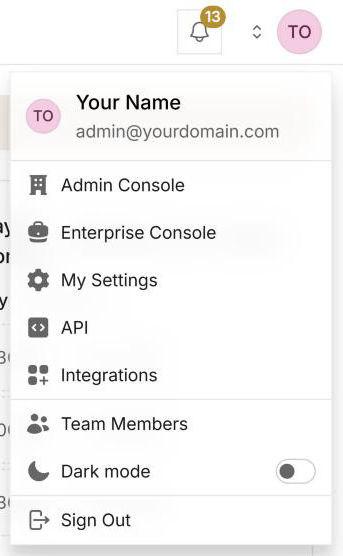
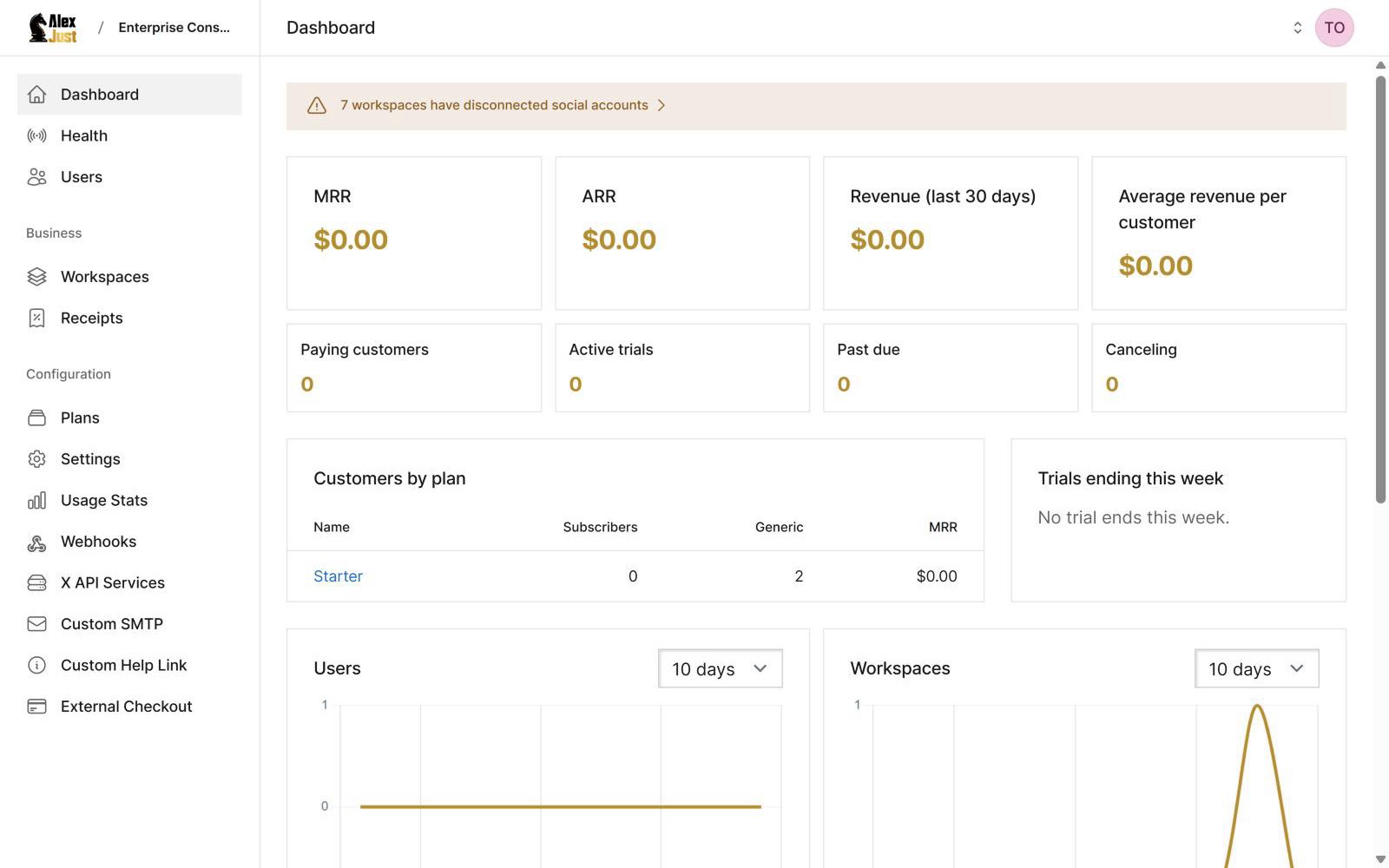
The Enterprise Console opens on a dashboard of your revenue (MRR, ARR, the last 30 days), paying customers, trials, and sign-ups over time:
Set up checklist
Work through these before you invite customers:1
Brand the platform
Upload your logo and favicon and pick a theme. See Brand your platform.
2
Connect a payment platform
Connect Stripe and choose your currency, billing cycle and trial. See Take payments.
3
Create your plans
Set prices and limits for each plan. See Create plans.
4
Set up sign-up and email
Decide who can register, add your terms, and send email from your own address. See Sign-up, email and help.
5
Connect the X API (optional)
Needed only if your customers will post to X. See Connect the X API.
6
Test as a customer
Register a test account from a private browser window, subscribe to a plan, connect a channel and schedule a post. Then look it up under Enterprise Console > Users. See Manage customers.
Help for you and your customers
- Your customers’ help centre. Your platform comes with a whitelabel help centre: an unbranded guide to every feature that never mentions OnlySocial. Unless you set your own, the Help Center link in the sidebar opens it, so your customers have help from day one. To send them to your own help centre instead, set a custom help link.
- API documentation. Open API in the user menu and click API documentation for unbranded API docs you can share with customers. Every API on this site works the same on your whitelabel, at
app.yourdomain.com. - Support. For anything about your platform itself, such as your domain, your server or a feature that should be switched on, contact OnlySocial support or visit help.onlysocial.io.