
Create a plan
Click Create plan and fill in the sections from top to bottom.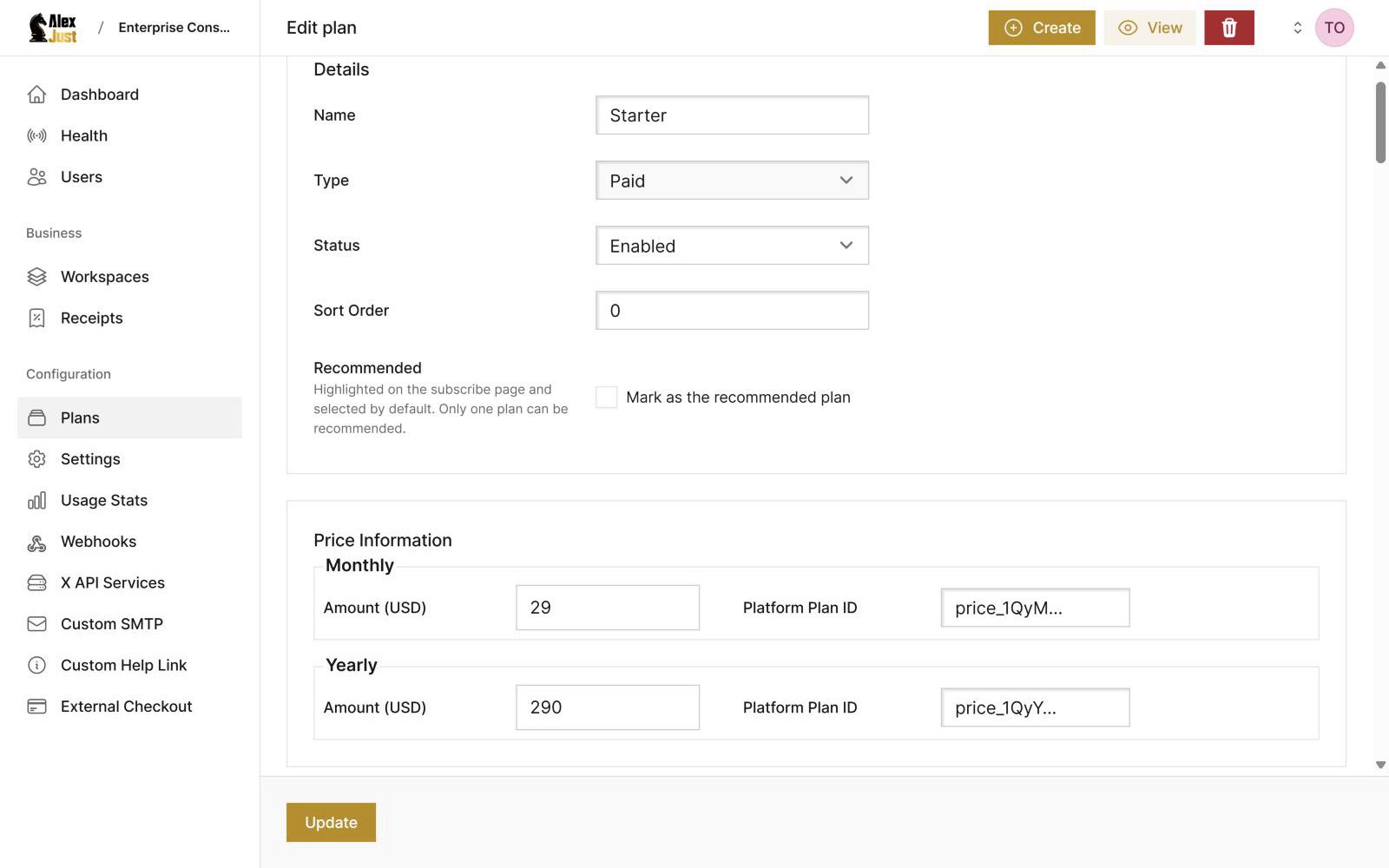
Details
Prices
For a paid plan, enter the Amount for each billing cycle you offer, monthly and yearly, in the currency from your billing settings. Each amount also needs a Platform Plan ID: the ID of the matching price on your payment platform. In Stripe:1
Create a product
In Stripe, open Product catalog, click Add product and name it after the plan.
2
Add a recurring price per cycle
Add a monthly recurring price and a yearly recurring price, with the same amounts and currency as the plan.
3
Copy the price IDs
Copy each price’s ID (
price_…) into the plan’s matching Platform Plan ID.Visibility
Display Status decides whether the plan appears on the plans page. Make a plan Hidden to keep it for customers you set up yourself, such as a custom deal, and give it to them with a generic subscription.Plan type and modules
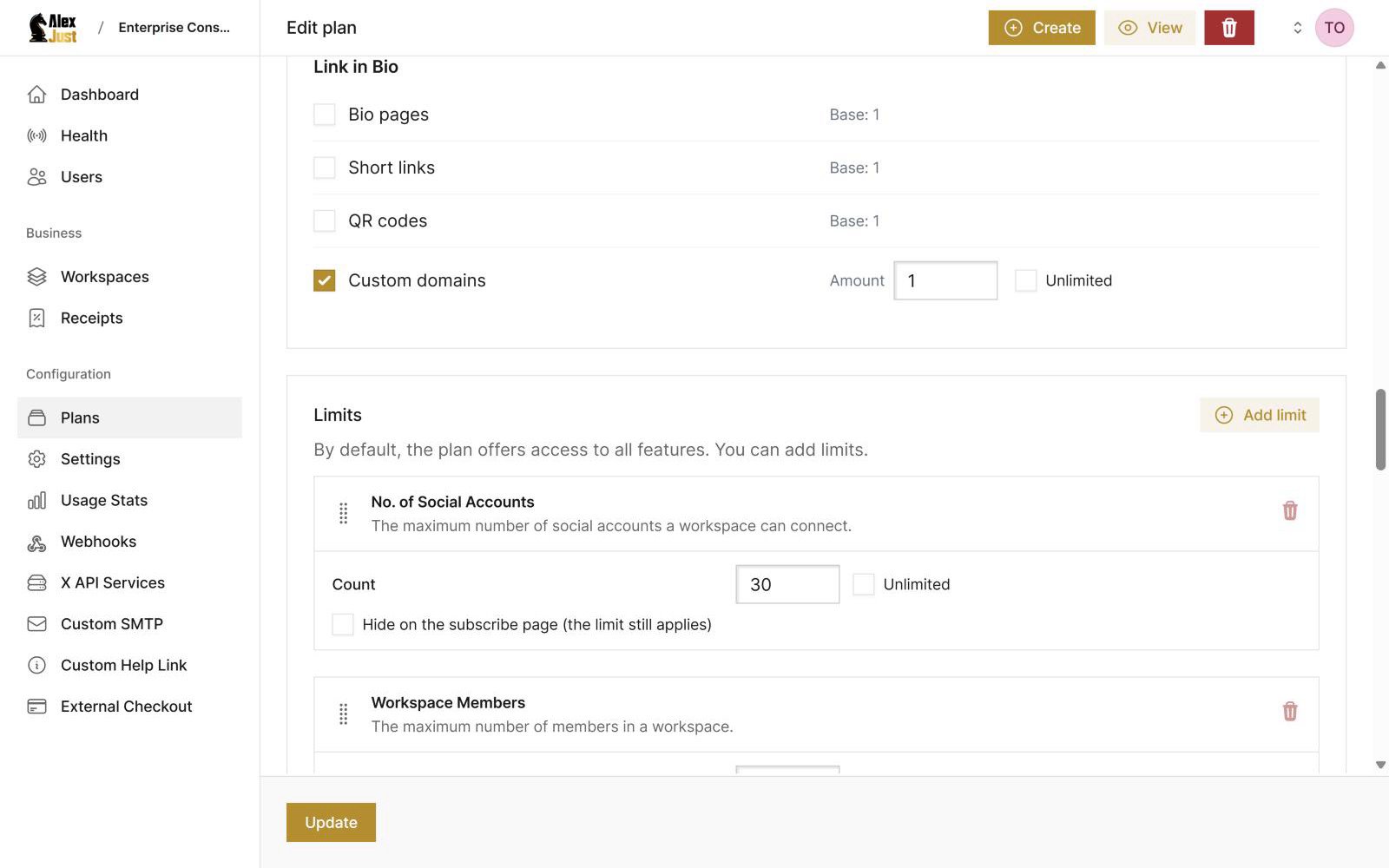
Plan type is Standard plan for a normal subscription, or Add-on for an extra that customers buy on top of a plan. You can’t change it after the plan is created. Modules decides which parts of the product the plan includes:
A plan that makes neither choice gets the base allowance shown next to each module.
Set limits
Under Limits, click Add limit and pick what to cap. Without limits, a plan offers every feature without restriction.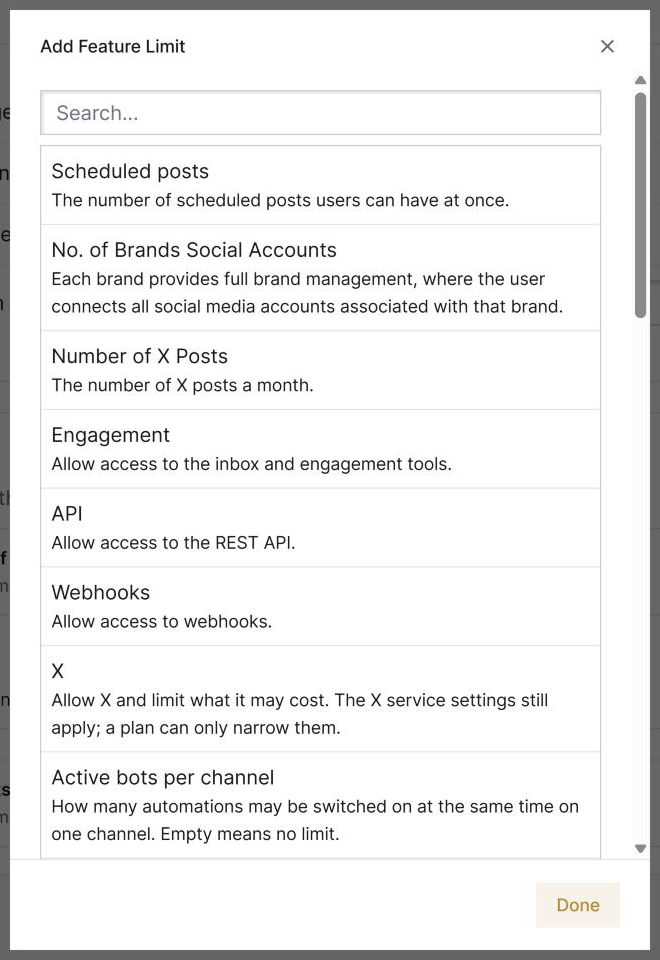
Click Create at the bottom of the page. To change a plan later, open it from Plans and click Edit. Limit changes apply to every workspace on the plan. A new price only reaches existing subscribers if you also move them to the new Stripe price.