
Sign-up
Enterprise Console > Settings > Onboarding controls how new customers join.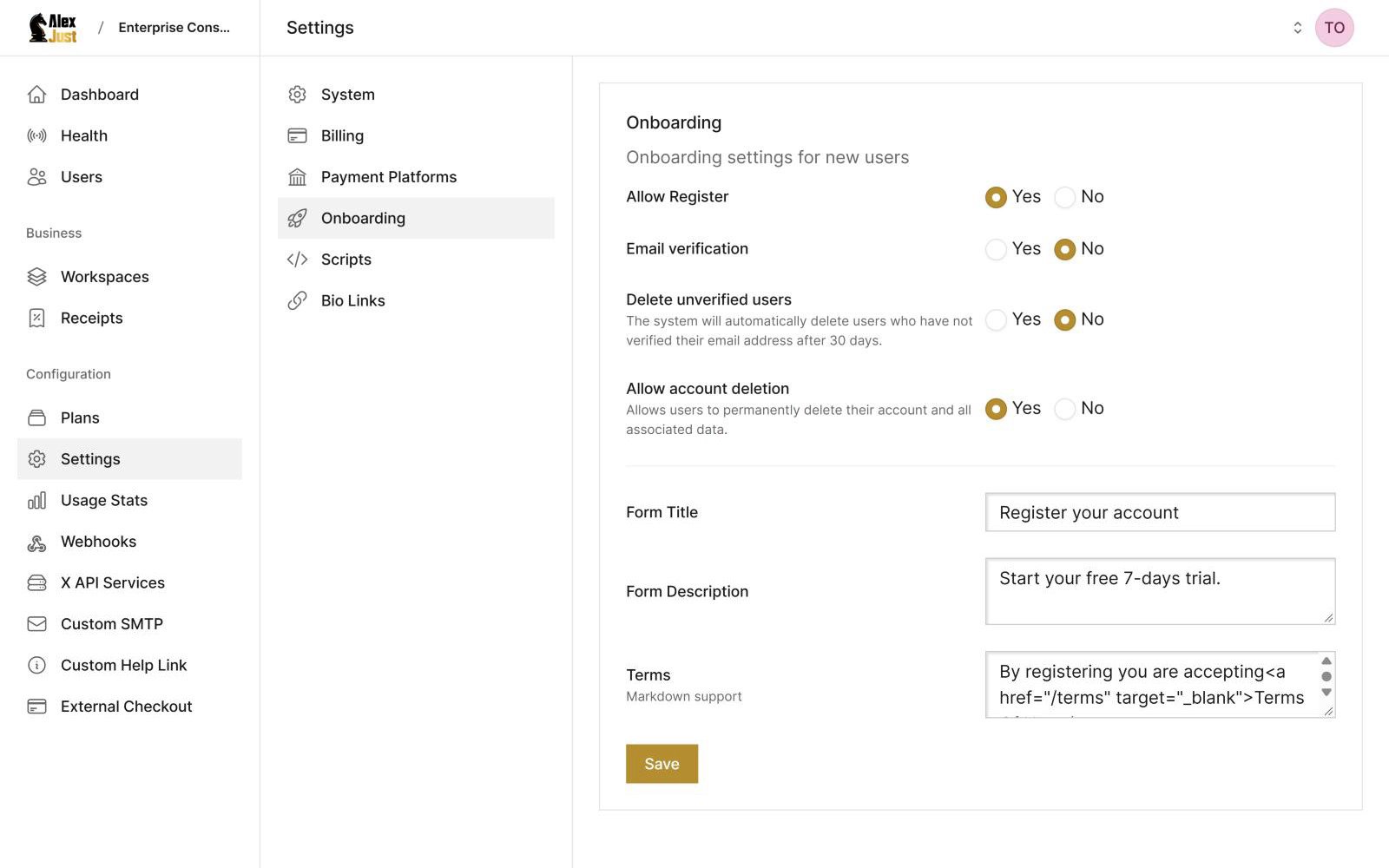
Click Save.
1
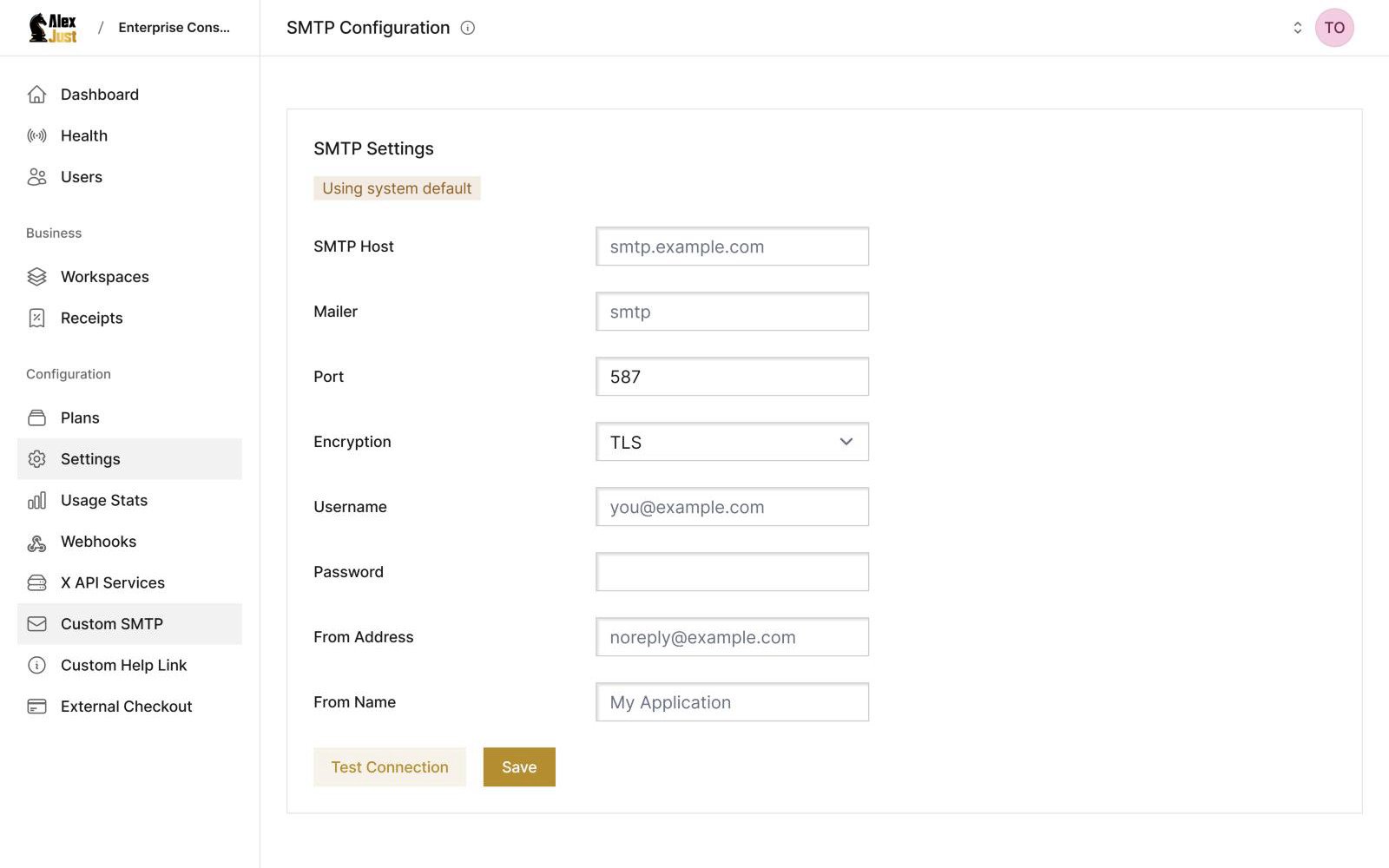
Enter your provider's details
Copy the SMTP Host, Port, Encryption, Username and Password from your mail provider, such as Google Workspace, Microsoft 365, Amazon SES, Postmark or Mailgun. Leave Mailer as
smtp.2
Set the sender
Enter the From Address, for example
hello@yourdomain.com, and the From Name, usually your brand.3
Test and save
Click Test Connection. When it succeeds, click Save. Until you save your own server, the page shows Using system default.
Most providers only send from a domain you have verified with them. Add the SPF and DKIM records they give you to your domain’s DNS, so your email reaches inboxes instead of spam.
Help link
The sidebar shows customers a Help Center link. Until you set your own, it opens the platform’s whitelabel help centre: an unbranded guide to every feature that never mentions OnlySocial, so you don’t have to write one. The page shows Using default link while that’s the case. To point the link at your own help centre instead, go to Enterprise Console > Custom Help Link.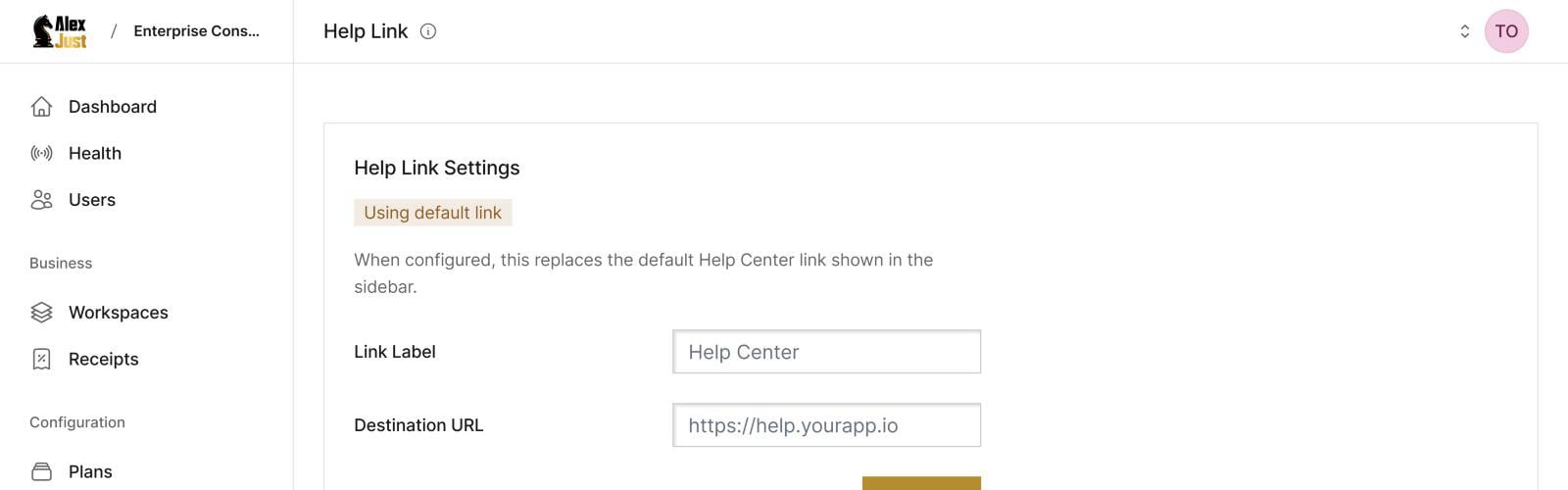
Help Center, and the Destination URL, then click Save Link.